
- Objects, Signs, and Tools
-

ACCESS STANDARD OBJECTS, SIGNS, AND TOOLS WITH OPENROADS SIGNCAD
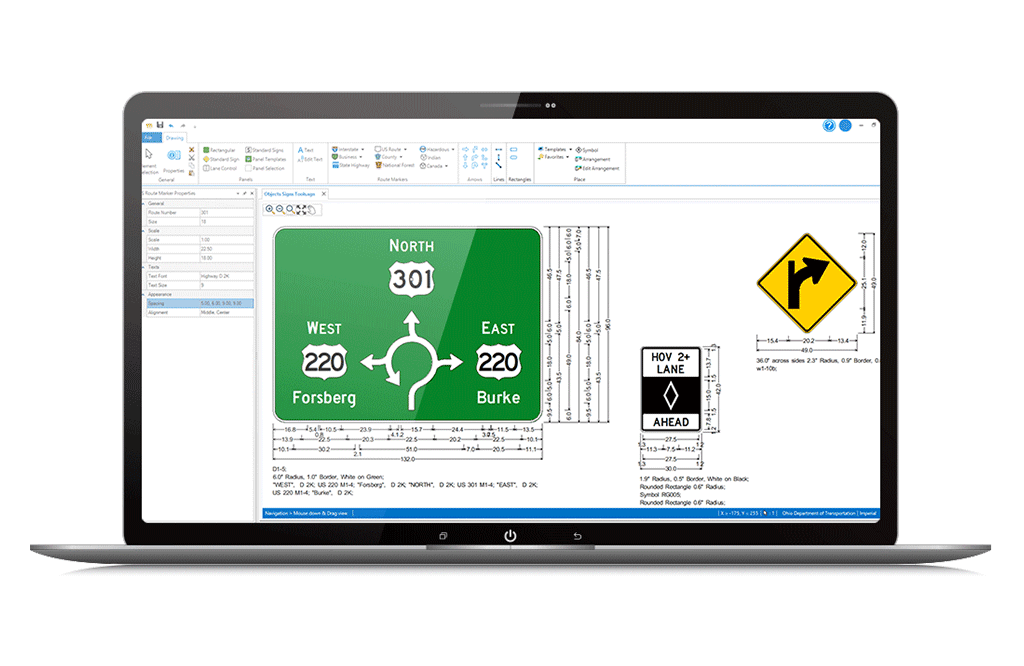
Access a library of design objects like route markers, arrows, symbols, panels, borders, lines, and fonts. All these smart objects are defined by standard templates, ensuring that they are drawn to your selected standard.
- Customizations
-

OPENROADS SIGNCAD CAN MODIFY AND CUSTOMIZE WITHOUT SACRIFICING TIMELINES
Quickly and easily revise existing signs. It is not necessary to spend hours or start from scratch, as OpenRoads SignCAD’s dynamic paneling and automatic dimensioning will adjust dimensions and maintain alignments. Layout dimensions can be manually customized so that, even with automation, users can fully control sign appearance.
- Design and Manufacturing
-
STREAMLINE DESIGN AND MANUFACTURING IN OPENROADS SIGNCAD
OpenRoads SignCAD is your complete solution for sign design and manufacturing. No need for outside or third-party packages and unnecessary rework. It is as easy as one, two, three! Simply:
- Design the signs
- Select objects to cut
- Cut the sign directly from OpenRoads SignCAD
- And you’re done
- Compliance and Standards
-
OPENROADS SIGNCAD COMPLIES WITH STATE AND FEDERAL SIGNAGE STANDARDS
Reduce time-consuming, tedious tasks with simple, automated operations using built-in manual of uniform traffic control devices (MUTCD), state, and federal standards.
ACCESS STANDARD OBJECTS, SIGNS, AND TOOLS WITH OPENROADS SIGNCAD
Access a library of design objects like route markers, arrows, symbols, panels, borders, lines, and fonts. All these smart objects are defined by standard templates, ensuring that they are drawn to your selected standard.

OPENROADS SIGNCAD CAN MODIFY AND CUSTOMIZE WITHOUT SACRIFICING TIMELINES
Quickly and easily revise existing signs. It is not necessary to spend hours or start from scratch, as OpenRoads SignCAD’s dynamic paneling and automatic dimensioning will adjust dimensions and maintain alignments. Layout dimensions can be manually customized so that, even with automation, users can fully control sign appearance.
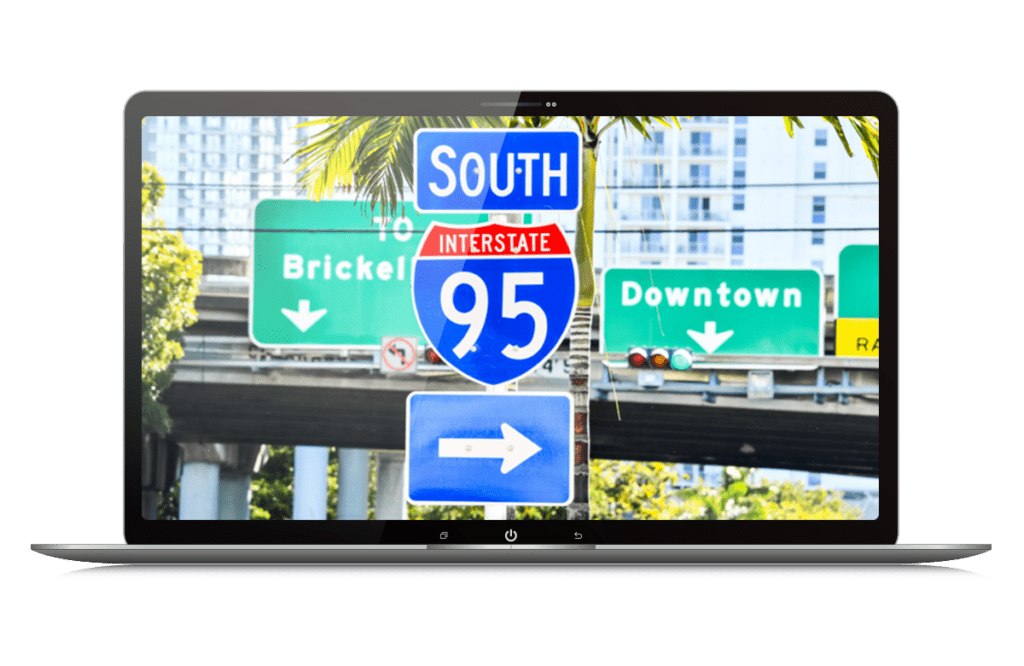
STREAMLINE DESIGN AND MANUFACTURING IN OPENROADS SIGNCAD
OpenRoads SignCAD is your complete solution for sign design and manufacturing. No need for outside or third-party packages and unnecessary rework. It is as easy as one, two, three! Simply:
- Design the signs
- Select objects to cut
- Cut the sign directly from OpenRoads SignCAD
- And you’re done
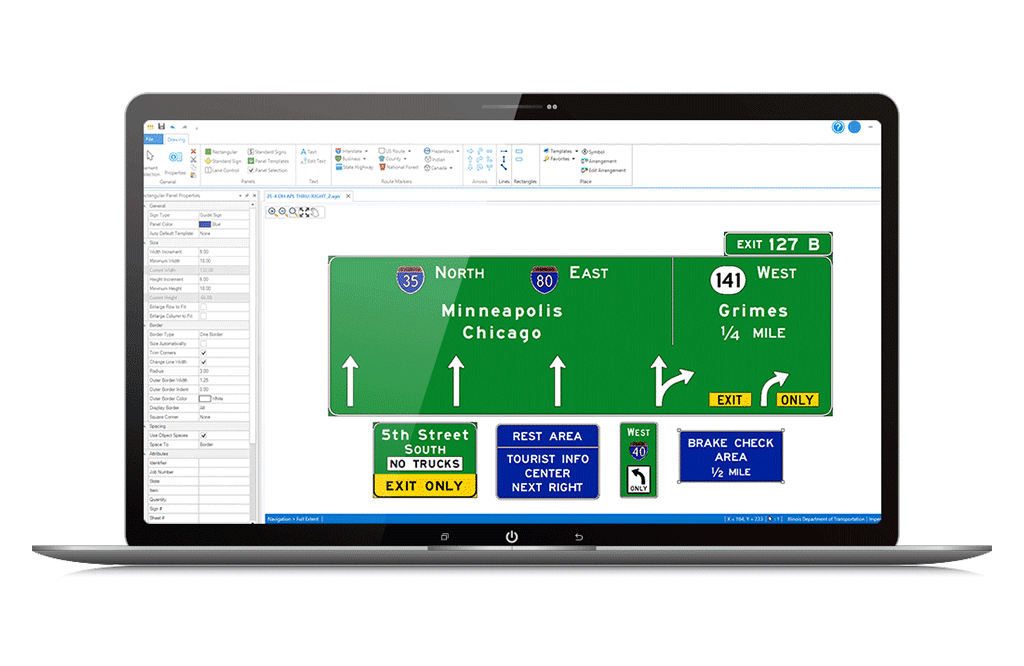
OPENROADS SIGNCAD COMPLIES WITH STATE AND FEDERAL SIGNAGE STANDARDS
Reduce time-consuming, tedious tasks with simple, automated operations using built-in manual of uniform traffic control devices (MUTCD), state, and federal standards.